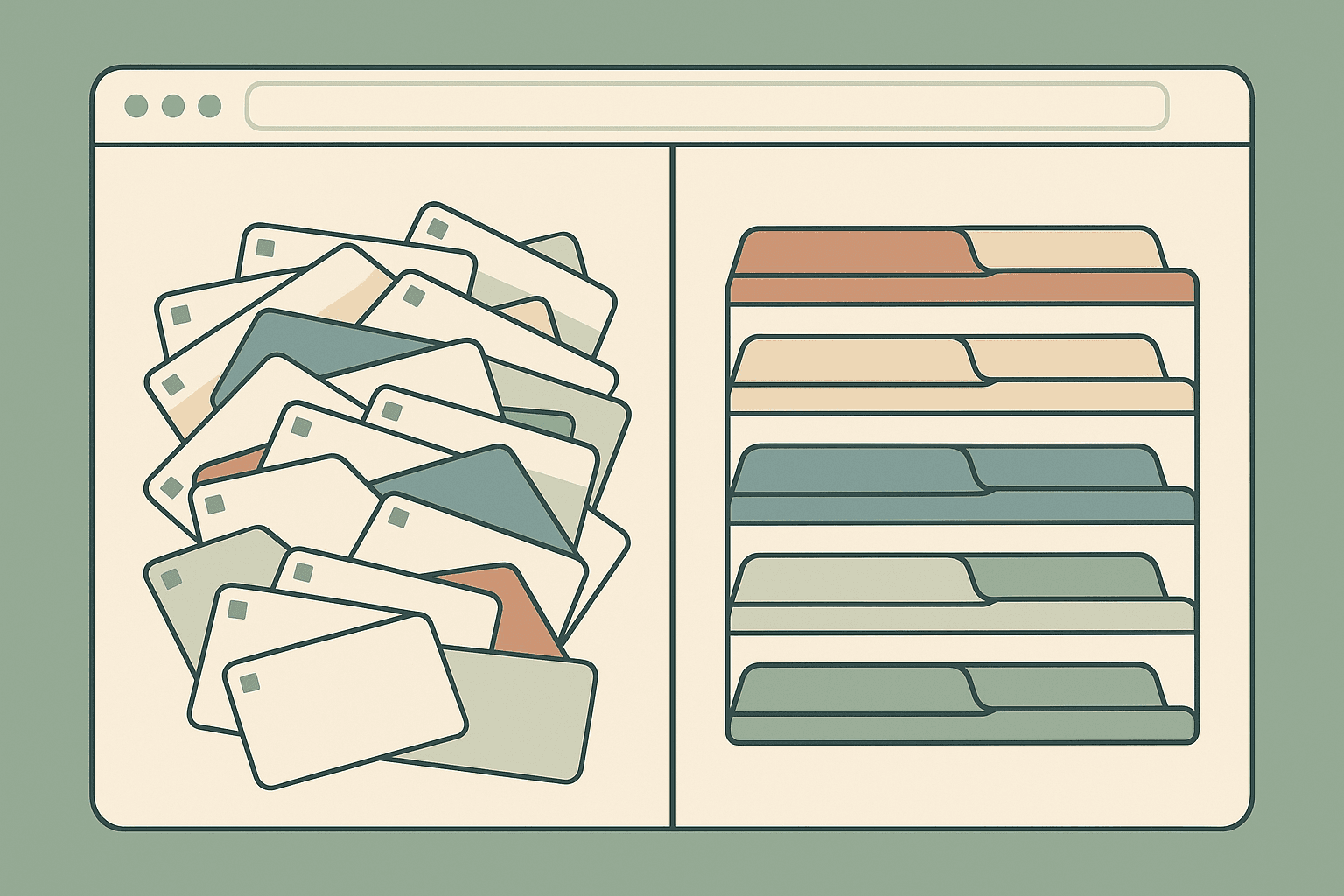
You have 60+ tabs open right now. Your bookmarks folder hasn't been touched since 2023. You've emailed yourself links "to read later" that you never read. This is the guide that fixes all of it. A system designed to last, not another tool you'll abandon in two weeks.
Most productivity advice about browser tabs falls into two camps: "just close them" (unhelpful) or "try this extension" (temporary fix). Neither addresses the real problem.
The real problem isn't too many tabs. It's that you don't trust your system to save what matters, so you keep everything open as a safety net.
This guide gives you a complete system for organizing tabs, bookmarks, and saved links that you'll actually maintain. It covers why existing approaches fail, the principles behind a system that works, and step-by-step instructions for setting one up in under 30 minutes.
Why Your Current System Doesn't Work
Before building something better, it helps to understand why every previous attempt failed. If you've tried any of these, you're not alone - and it's not your fault. Each tool has a structural flaw that guarantees failure over time.
Browser Bookmarks: The Graveyard
Chrome's bookmark manager was designed in an era when people saved a handful of important pages. It was never built for the volume of links modern knowledge workers encounter daily.
The problems compound over time. Folder structures become too deep to navigate. There's no tagging: a link can only live in one folder, even if it belongs in three. Search barely works across folder names. And there's zero visibility into what's still relevant versus what expired months ago.
The result: most people have hundreds of bookmarks they never revisit. The folder labeled "Important" hasn't been opened since the year it was created.
Notion / Google Docs: Too Much Friction
Database tools like Notion are powerful. That's the problem. Creating a proper link database requires designing columns, choosing properties, setting up views, and maintaining it all manually.
The friction of opening Notion, navigating to the right database, pasting a URL, filling in metadata, and clicking save takes 30-45 seconds per link. Compare that to the 2 seconds it takes to open a new tab. The tab always wins.
Google Docs are even worse - they become walls of unsearchable, unstructured text within a week.
"Email It to Myself": Organized Chaos
This strategy feels productive in the moment. You see something valuable, forward it to your inbox, and move on. But your inbox is a chronological stream, not a filing system. Within days, those links are buried under real emails. You've just created a second bookmark graveyard inside your email.
Pocket / Read-Later Apps: Wrong Use Case
Pocket and Instapaper were designed for articles you plan to read. They work well for that narrow purpose. But most saved links aren't articles. They're tools, references, documentation, resources, and pages you need to find later in a specific context. Read-later apps have no concept of collections, projects, or categories for non-article content.
Browser Tab Groups: Temporary Fix
Chrome's built-in tab groups are a step forward. You can color-code and label groups of tabs, which helps with active work sessions. But tab groups aren't persistent across sessions (unless you pin them), they don't sync well across devices, and they offer no search, no sharing, and no way to archive a group for later without losing it.
Tab groups manage your current work session. They don't solve the long-term organization problem.
The Three Principles of a Link System That Lasts
After watching countless systems fail - including many of our own - a pattern emerges. Systems that actually stick share three characteristics. Miss any one of them, and the system collapses within weeks.
Principle 1: Saving Must Be Faster Than Opening a Tab
If saving a link takes more than 5 seconds, you won't do it consistently. You'll default to keeping the tab open "for now," which becomes forever.
The gold standard is one click. A browser extension that captures the current page - title, URL, description, favicon - and saves it to a collection instantly. No forms. No metadata entry. One click, done.
This is non-negotiable. Every system that requires manual data entry on every save is a system that will be abandoned.
Principle 2: Organization Must Happen by Default
The second a system requires you to manually organize after saving, you've introduced a task that will accumulate into a backlog you'll never clear.
The solution is collections: pre-defined buckets that match how you actually use links. Instead of saving to one giant list and organizing later, you choose a collection at save time. This takes an extra second but eliminates hours of future organizing.
Good collection categories mirror your actual projects and interests. A developer might have: "Work: Frontend," "Work: Backend," "Learning: Rust," "Side Project," "Design Inspiration." A marketer might have: "Competitor Analysis," "Content Ideas," "SEO Tools," "Client Resources."
The categories will be imperfect at first. That's fine. Add new ones as needed. Delete empty ones monthly. The structure evolves with your work.
Principle 3: Retrieval Must Be Instant
A link you can't find is a link that doesn't exist. If retrieval takes more than 10 seconds, you'll open a new tab and search Google again instead of checking your saved collection.
Instant retrieval requires three things working together: meaningful categories (you know roughly where it lives), tags (for cross-cutting concerns that span multiple collections), and full-text search (for when you remember a word from the title but nothing else).
Any system that offers all three - collections, tags, and search - will dramatically outperform any system that relies on only one.
The 30-Minute Setup: Step by Step
Here's how to build your link organization system from scratch. The initial setup takes about 30 minutes. After that, maintaining it takes less than 5 seconds per link saved and 10 minutes per month for cleanup.
Step 1: Choose Your Tool (5 Minutes)
You need a tool that offers: one-click browser saving, collections or folders, tags, and search. There are several good options available in 2026.
Shelfy is free with unlimited collections, community voting, a Chrome extension, and a REST API. This makes it a strong option if you want something lightweight but feature-complete. Other solid alternatives include Raindrop.io for visual bookmarking, and Toby for tab-focused organization.
The tool matters less than the system. Pick one, commit for 30 days, and adjust if needed. Don't spend a week comparing features. That's procrastination dressed as productivity. One key thing to look for: automatic metadata extraction. When you save a URL, the best tools instantly pull the page title, description, and preview image so you never have to type a word. See why automatic metadata extraction matters for a deeper look at this feature.
Step 2: Create Your Starter Collections (10 Minutes)
Open your tool and create 5-8 collections based on how you actually use the internet. Not how you think you should organize things, but how you actually do.
Here's a starter template you can adapt:
For knowledge workers:
- Work: Active Projects (links for your current sprint or deliverables)
- Work: References (documentation, internal tools, dashboards)
- Learning (courses, tutorials, articles you're actively reading)
- Tools and Apps (software you use or want to try)
- Inspiration (design, writing, ideas - anything that sparks something)
For creators:
- Content Ideas (hooks, formats, topics to explore)
- Resources to Share (links your audience would value)
- Competitor Watch (what others in your niche are doing)
- Tools and Software (your content creation stack)
- Learning (courses, guides, skill development)
For developers:
- Current Project (docs, Stack Overflow threads, GitHub repos)
- Libraries and Tools (packages, frameworks, utilities)
- Learning (tutorials, blog posts, conference talks)
- Design and UX (references, component libraries, inspiration)
- Career (job boards, interview prep, networking)
You'll refine these over time. Start with what feels natural.
Step 3: Process Your Current Tab Chaos (10 Minutes)
This is the cathartic part. Look at every tab you currently have open and do one of three things:
- Save it. If you'll need it again, save it to the appropriate collection.
- Act on it. If it requires an action (reply to an email, read an article, buy something), do it now or add it to your task manager. Don't keep a tab open as a to-do reminder.
- Close it. If you can't articulate why you need it, close it. If it turns out you needed it, you'll find it again via your browser history or a Google search.
Most people find that 60-70% of their open tabs fall into category 3. That's normal. The anxiety of closing them disappears once you trust your save system.
If you're using a tool with a browser extension, this process is fast - click the extension, choose a collection, done. A tool like Shelfy lets you save all open tabs to a collection in one click, which makes this step trivially quick.
Step 4: Install the Browser Extension (2 Minutes)
Whatever tool you chose, install its browser extension. This is the single most important step. Without it, saving links requires opening the tool's website, pasting a URL, and clicking save - too much friction.
With an extension, you click one button on any page, choose a collection, and you're done.
Step 5: Set a Monthly Cleanup Reminder (3 Minutes)
Add a 10-minute recurring calendar event: "Link Cleanup." Once a month, you:
- Delete links that are no longer relevant
- Merge collections that overlap
- Split collections that have grown too large
- Review your "unsorted" collection (if you have one) and file everything
This prevents the system from degrading into another graveyard. The monthly review is what separates systems that last years from systems that last weeks.
The Ongoing Habit: What Changes Day to Day
Once the system is set up, your daily workflow changes in three small ways:
When you find something valuable: Click the browser extension. Choose a collection. Close the tab. Total time: 3 seconds.
When you need to find something: Open your link tool. Search or browse the relevant collection. Find it. Total time: 5-10 seconds.
When you feel the urge to keep a tab open "just in case": Ask yourself: "Can I save this and find it later?" If yes, save and close. The anxiety fades within a week as you build trust in the system.
The goal isn't zero open tabs. It's intentional tabs. Keep open what you're actively working on right now. Save everything else. The difference between "73 tabs as a coping mechanism" and "5 tabs as active workspaces" is transformational for focus.
Beyond Personal Use: Sharing Collections
One underused feature of modern link management tools is shared collections. This unlocks use cases that bookmarks never could:
Team onboarding. Instead of sending new hires a Google Doc with 50 links (that's outdated by the time they read it), create a live collection. "Engineering Setup," "Design System Docs," "Internal Tools." Update it once, every new hire gets the current version.
Content curation. If you curate resources for an audience (a newsletter, a community, a course), a shared collection becomes a living resource library. Tools like Shelfy add community voting, so your audience can surface the most valuable links naturally.
Client resources. Consultants and agencies can create per-client collections with relevant research, competitor pages, and reference material. Share the link instead of attaching 15 URLs in an email.
Link-in-bio replacement. A well-organized public collection works as a link-in-bio page that's actually useful - categorized, searchable, and updatable. Unlike traditional link-in-bio tools that give you a vertical list of buttons, a collection-based approach lets your audience browse by topic and find what's relevant to them.
Frequently Asked Questions
How many collections should I start with? Between 5 and 8. Fewer than 5 and everything becomes a miscellaneous dump. More than 10 and you'll spend too long deciding where things go. You can always add more later.
What about links I need for less than a day? Keep those as tabs. Not everything needs to be saved. Tabs are for active, short-term use. Collections are for anything you might need again in a week, a month, or a year.
Should I import all my existing bookmarks? Only if you want to. Most people find that 80-90% of their bookmarks are dead links or irrelevant. It's often faster to start fresh and only save forward. If you do import, schedule an hour to clean up immediately - otherwise you're just transferring one graveyard to another.
What if I forget to use the system? It takes about two weeks to build the habit. Leave the browser extension icon visible (don't hide it in the overflow menu). The first few times you catch yourself with 20+ tabs open, take 2 minutes to save and close. After a couple of weeks, saving becomes automatic.
Does this work on mobile? Most link management tools have mobile apps or mobile-friendly web interfaces. The key is that collections sync across devices - save on your phone, find it on your laptop. Check that your chosen tool supports this before committing.
The Bottom Line
Your tabs aren't a productivity system. They're a symptom of not having one.
The fix isn't discipline. It's infrastructure. A tool that saves in one click, organizes by default, and retrieves instantly. The setup takes 30 minutes. The habit takes two weeks. The payoff lasts years.
Close your tabs. Your laptop (and your brain) will thank you.
Shelfy is a free link management tool with organized collections, community voting, a Chrome extension, and a REST API. Set up in 60 seconds at shelfy.today.